Azure Load Balancer
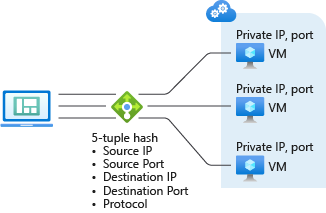
- Load-balance incoming internet traffic to your VMs. This configuration is known as a public load balancer.
- Load-balance traffic across VMs inside a virtual network. You can also reach a load balancer front end from an on-premises network in a hybrid scenario. Both scenarios use a configuration that is known as an internal load balancer.
- Port forward traffic to a specific port on specific VMs with inbound network address translation (NAT) rules.
- Provide outbound connectivity for VMs inside your virtual network by using a public load balancer.
Traffic Manager
Let’s say you want to balance load between two endpoint where your first endpoint is in Azure and 2nd endpoint is in on-prem . In this scinario we can use Traffic Manager . Traffic Manager allows you to control the distribution of user traffic for service endpoints in different datacenters. Service endpoints supported by Traffic Manager include Azure VMs, Web Apps, and cloud services. You can also use Traffic Manager with external, non-Azure endpoints.
When using a vanity domain with Azure Traffic Manager, you must use a CNAME to point your vanity domain name to your Traffic Manager domain name. DNS standards do not allow you to create a CNAME at the ‘apex’ (or root) of a domain. Thus you cannot create a CNAME for ‘contoso.com’ (sometimes called a ‘naked’ domain). You can only create a CNAME for a domain under ‘contoso.com’, such as ‘www.contoso.com’. To work around this limitation, we recommend using a simple HTTP redirect to direct requests for ‘contoso.com’ to an alternative name such as ‘www.contoso.com’.

Routing Method :
- Priority: Select Priority when you want to use a primary service endpoint for all traffic, and provide backups in case the primary or the backup endpoints are unavailable.
- Weighted: Select Weighted when you want to distribute traffic across a set of endpoints, either evenly or according to weights, which you define.
- Performance: Select Performance when you have endpoints in different geographic locations and you want end users to use the “closest” endpoint in terms of the lowest network latency.
- Geographic: Select Geographic so that users are directed to specific endpoints (Azure, External, or Nested) based on which geographic location their DNS query originates from. This empowers Traffic Manager customers to enable scenarios where knowing a user’s geographic region and routing them based on that is important. Examples include complying with data sovereignty mandates, localization of content & user experience and measuring traffic from different regions.
Application Gateway
Azure Application Gateway is a web traffic load balancer that enables you to manage traffic to your web applications.
Traditional load balancers operate at the transport layer (OSI layer 4 – TCP and UDP) and route traffic based on source IP address and port, to a destination IP address and port. But with the Application Gateway you can be even more specific. For example, you can route traffic based on the incoming URL. So if
/images is in the incoming URL, you can route traffic to a specific set of servers (known as a pool) configured for images. If /video is in the URL, that traffic is routed to another pool optimized for videos.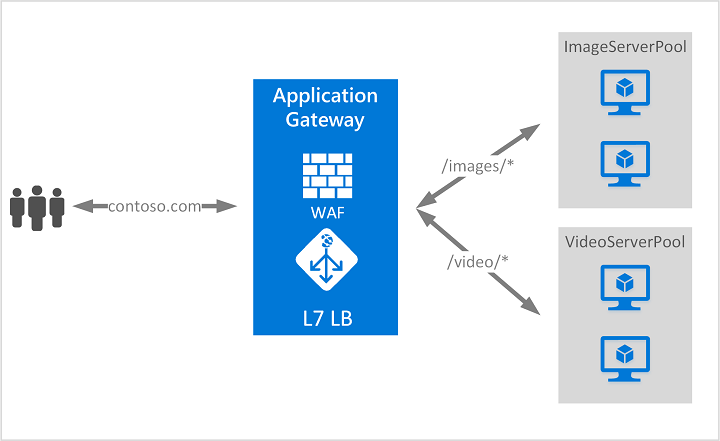
Deploy R Models to Azure
Tools
- R Studio
- VSTS
Approach-1
Take the Model and put in Docker Container
and create Keburnetes Cluster and copy images to the cluster
- Create Docker Image
- Deploy Image to Service
- These two steps can be done by Right click in VSTS and Deploy the Model to Service
Model file and Scoring File
Approach-2
- Use YMAL file config to specify the dependencies and stuff
- Create Tags and Finish.. lower left corner you can see its being deployed..
How the scoring file looks like?
- uses tensor flow model or some other model.
- load that up
- find the nodes and graphs that are relevant
- init function and run function()
- Custom code to pre-process data and normalize logic.
- azureml-defaults to keep track of model
Where are these Azure containers and Services living?
- Create AZURE ML work-space.
- It automatically create blob storage account, azure container registry been created
- Put the Docket image is put in registry
Approach-3
- Create VM , VNET, Provide IP address Public or Private (Direct Connect/ Express Route)
- Install Dependencies libraries
High Level Steps in all approaches
- Develop Code in R studio along with Data Sets
- Create R Packages
- Create Zip File
- Create Wrapper File (again ZIP)
- Upload the wrapper file to Azure ML Work Space.
Highlights
- 30% of Data Scientists are using R Data as Primary Data Analysis Tool
- RStudio Server (open source) running in containers
- Rstudio Connect Cluster



Azure Logging
OMS Log Analytics and Custom Logs
Steps
- Create LOG
- Collect LOG
- Define Custom Fields
- Search the LOG
- Delimiter
- No Circle logging
- ASCII or UTF-8
Azure PORTAL
General
- Search for Log Analytics or Monitor
- Create New Log Analytics
- Provide Name, Subscription, Resource Group, Location, Pricing Option etc..
- Go to Advanced Settings
- Go to Data
- Chose File from Custom Log
- Select Delimiter ( New line)
- Set Path
- Chose path for every log file
- Add Name and Description
- Takes 15 minutes to create the stream
- Go to Log Search...... select the custom log that is created
Azure Monitor